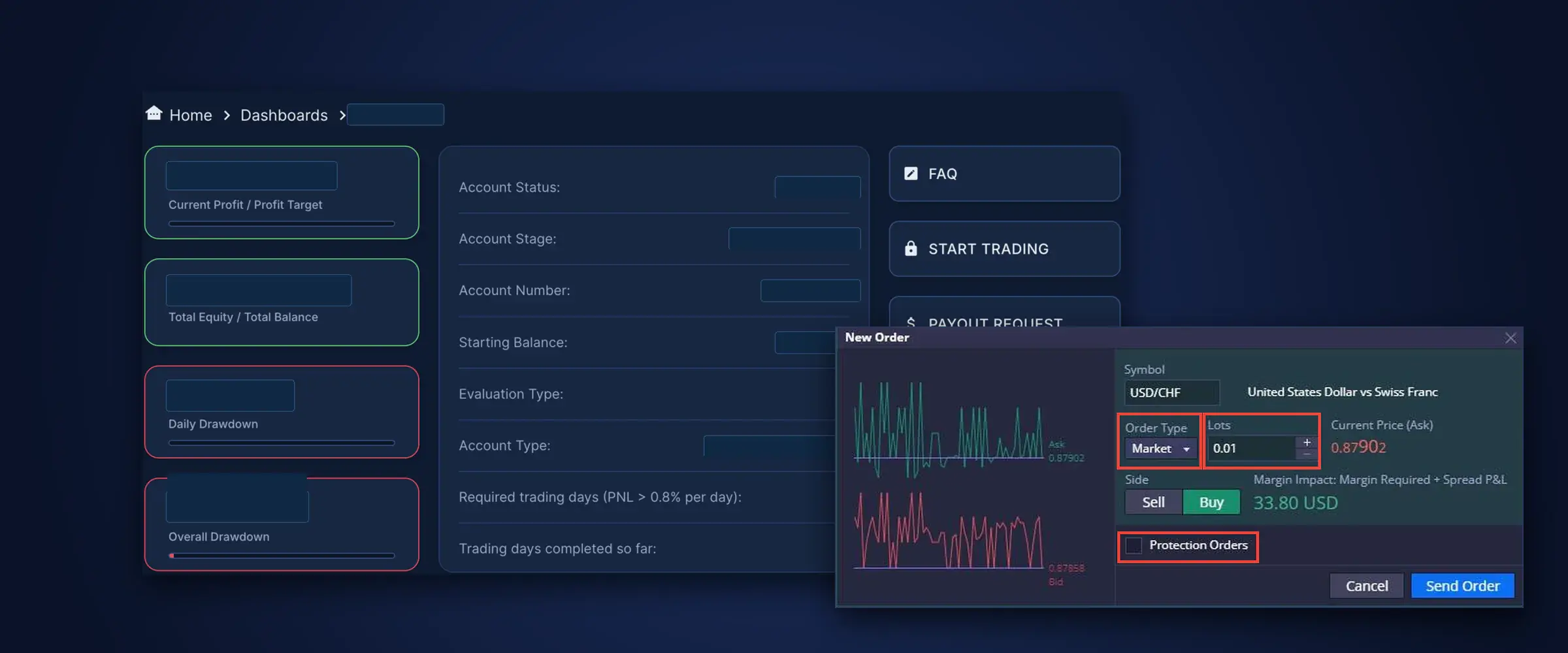
Use this guide to get from your welcome email to a prepared trading workspace. It shows where to confirm your Challenge, how to read key DXtrade screens, and what to check before placing an order.
Follow the steps in order for your first session, then come back to the section you need. In short:
- Open your email. Find the Portal and DXtrade links.
- Check your plan. Confirm the account, phase and rules.
- Set up DXtrade. Select your account and key widgets.
- Review each order. Check size, protection and status.
Know what your account represents. Challenge trading takes place on a demo account with simulated funds and real market data. The plan-specific terms and the current Velotrade Rules page set the objectives and limits for your account.
Sign in and find your Challenge
The Velotrade Portal is where you check your Challenge details. DXtrade is where you trade. Sign in to the Portal with your registered email address and the password you set. DXtrade uses a separate username and password, securely generated by Velotrade and provided to you. Use those supplied credentials to sign in, then match the account number in DXtrade to the correct Challenge in your Portal.
| Use this place | For these tasks |
|---|---|
| Portal | Review your user account, challenge or trading account details, and any next-step notices. |
| DXtrade | View prices and charts, place or manage orders, review positions and trade history, and create account statements. |
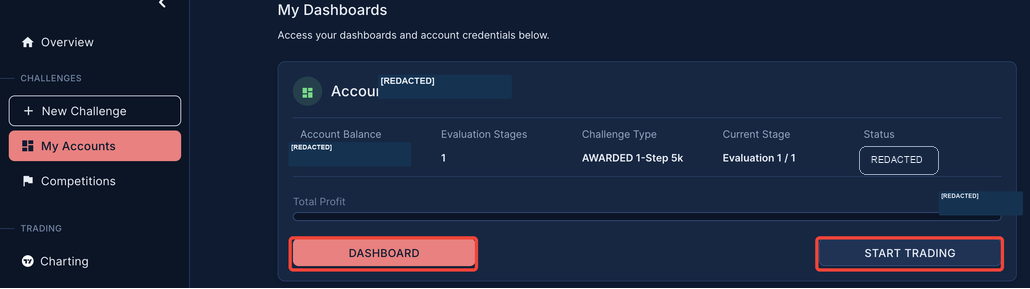
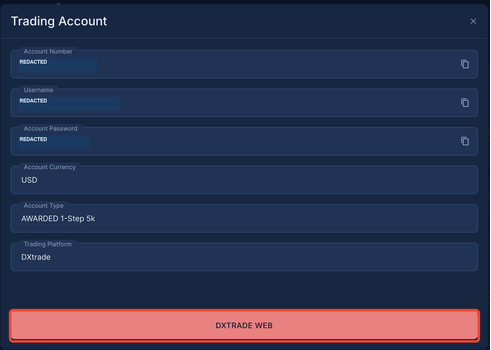
The Portal opens on Overview, which shows a My Feed of activity notices. Select My Accounts under Challenges, then choose Dashboard on the account card to see account details and trading history. Start Trading opens that account's DXtrade credentials; DXTRADE WEB takes you to Velotrade's DXtrade site.
First login checklist
- Open the Portal link from your Velotrade welcome email. Sign in with your registered email address and the password you chose for the Portal.
- Choose My Accounts under Challenges. Select Dashboard to review the account details and trading history before your first session.
- On the correct Challenge card, select Start Trading to view the DXtrade username and password securely generated by Velotrade. Choose DXTRADE WEB to open the trading platform.
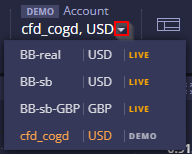
- Sign in to DXtrade with the provided username and password. Then compare the account number selected in DXtrade's upper-right account selector with the account number shown for that Challenge in Portal > My Accounts. If the numbers do not match, pause and contact support.
Read the terms for this Challenge
Challenge plans and phases can have different targets, loss limits and qualifying conditions. Take a few minutes to identify the values that apply to this exact account before you trade.
| Check | Where to check | Why it matters |
|---|---|---|
| Plan and current phase | Purchase confirmation and the Challenge or account view in your Portal. | The target and qualifying conditions can change between phases. |
| Profit target | Your account terms and current Velotrade Rules page. | A target is a progress condition. Other conditions may also apply. |
| Daily loss and maximum drawdown | Your account terms and current Velotrade Rules page. Note the calculation basis and reset time. | Open trade P&L affects equity. The rule may use equity, balance or another stated reference. |
| Qualifying trading days and activity rules | Your account terms and current Velotrade Rules page. | A target may not be enough if your plan has a minimum-day or activity condition. |
| Tradable symbols and trading conditions | Velotrade Instruments page and the symbol information in DXtrade. | Trading hours, contract details, margin and swap can vary by instrument. |
Make a small rule card. Write down your Challenge account number, plan, current phase, profit target, daily loss limit, maximum drawdown limit and reset time. Use the values shown for your account. If a value is unclear or does not match, pause and ask support before trading.
Targets, drawdown, status and trading-day information depend on the terms of your Challenge. Check your account-specific terms and the current Velotrade Rules page before relying on any value.
Choose the correct DXtrade account
If you have multiple Challenge accounts, older accounts may remain in DXtrade's upper-right account selector. Before reviewing activity or trading, choose the account whose number matches the Challenge card in Velotrade Portal > My Accounts. Do not assume the first account in the list is the right one.
Set up your DXtrade workspace
A clean screen makes it easier to confirm what account you are using and what is open. You can save widgets together as a layout and adjust the arrangement later.
| Widget | Use it to |
|---|---|
| Watchlist | Use the prebuilt All Instruments list for the full catalog, or choose Crypto, Commodities, Indices or Equities to focus on one asset type. |
| Chart | Review price history and select a symbol. Use chart settings to change the timeframe and display. |
| Positions | Check open positions, including their current unrealized profit or loss. |
| Orders | Check pending orders that have not opened a position yet. |
| Trade History | Review executed and closed trades over a selected period. |
| Order History | Trace an order from placement through execution or closure. |
A useful first layout
Add a Watchlist, Chart, Positions, Orders and Trade History widget. Save the layout with a name such as "Challenge" so you can return to it. You do not need to add every available widget to get started.
Use Positions to review open trades. Before acting, confirm the intended account in the selector near the upper-right of DXtrade.

Check instrument details
Open Instrument Details for the selected market to confirm the contract information that affects order sizing, margin and trading hours. The available fields differ by instrument.
| Check | Why it matters |
|---|---|
| Asset type, currency and precision | Confirm the market and how prices or quantities are quoted. |
| Lot size, minimum, maximum and step | Check that the amount you enter is valid for this instrument. |
| Margin rate and Margin Impact | Review the funds required before sending the order. |
| Trading hours and overnight rates | Check when the instrument is available and any displayed overnight terms. |
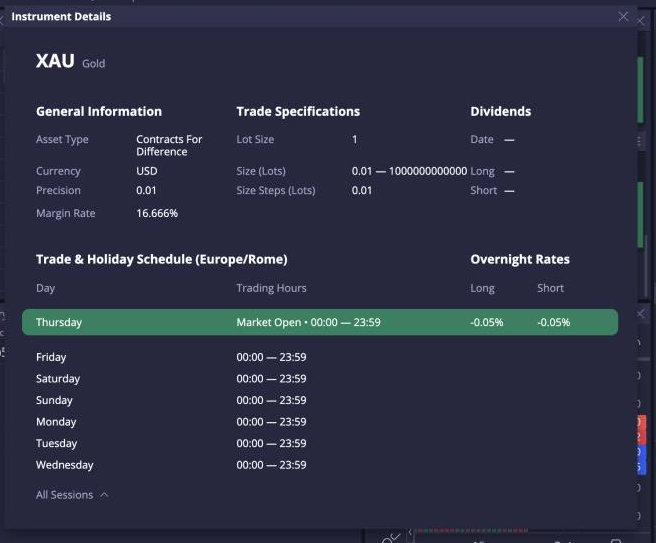
What does a 16.66% margin rate mean?
In this captured example, 16.66% is the margin rate applied to the position's notional value. Its inverse is about 6x leverage (100 ÷ 16.66): for $100 of notional exposure, the rate corresponds to about $16.66 of margin before any currency conversion or other platform adjustments. Margin Impact in the order ticket estimates the funds needed for your specific order; check the live value before submitting.
Use Velotrade tools to size a position
Velotrade's Tools page has free calculators for planning a position, reviewing drawdown and estimating Challenge outcomes. Use them before opening an order; then confirm the instrument's live specifications and your Challenge limits in DXtrade.
Position Size Calculator
Choose Crypto, Forex or Stocks, enter your account balance and planned risk, then enter the planned entry and Stop Loss prices. The calculator returns an estimated position size, notional value, risk amount and leverage needed. For Forex, it also shows standard, mini and micro lot equivalents.
- Set the balance and risk. Use the balance for the Challenge account and the amount you are prepared to risk on this trade.
- Enter entry and Stop Loss prices. The distance between them determines the size that corresponds to your selected risk.
- Check the output before DXtrade. Match the same instrument and units, then check its minimum size, size step, margin and current Challenge limits.
Other planning tools
| Tool | Use it to |
|---|---|
| Drawdown Risk Calculator | Review the selected Challenge's daily limit, maximum drawdown and loss buffer. |
| Challenge Pass Calculator | Explore how win rate, reward-to-risk and risk per trade affect a pass estimate. |
| Prop Challenge Profit Calculator | Estimate the profit target and potential payout for a listed Challenge plan. |
| Challenge ROI Calculator | Compare fee, break-even timing and projected returns under different assumptions. |
Gold (XAU): compare ounces, not lot labels
The Position Size Calculator currently lists Crypto, Forex and Stocks; it does not offer XAU as a commodity input. Its 100,000 / 10,000 / 1,000 unit lot breakdown is for Forex only. Do not use that conversion for gold.
MT5 gold contract sizes are broker-specific. This example uses a common MT5 specification of 100 troy ounces per standard lot and the Velotrade DXtrade XAU details captured above on 24 September 2026, which show Lot Size 1 (1 troy ounce per lot) and a size step of 0.01.
| Platform | Lot definition in this example | Quantity for 20 oz |
|---|---|---|
| MT5 XAUUSD | 100 oz per standard lot | 0.20 lots |
| Velotrade DXtrade XAU | 1 oz per lot (captured setting) | 20 lots |
The MT5 contract size can differ by broker, and DXtrade specifications can change. Check XAUUSD Symbol Specification in MT5 and Instrument Details plus the order ticket in DXtrade before converting. If either contract size differs, calculate the ounce exposure from the live specifications first.
Use TradingView charts and watchlists
TradingView charts are available on Portal > Trading > Charting and in DXtrade's TradingView Chart widget. Use them to change instruments and timeframes, read candles and volume, and add indicators or drawing tools. In DXtrade, you can also start an order directly from the chart (see Place an order from the chart). Check live prices in DXtrade before placing an order.
Change the instrument and chart view
- Select the ticker shown in the chart header to open symbol search.
- Search for a ticker or company. Check the description and listing before selecting a result.
- Use the toolbar to change the interval, chart style or indicators. Drawing tools sit beside the chart.
Start with a default watchlist
Open the Watchlist selector to switch lists. The ready-made lists cover the full catalog or a single asset type:
| Watchlist | When to use it |
|---|---|
| All Instruments | Browse the full available instrument catalog. |
| Crypto | Focus on cryptocurrency instruments. |
| Commodities | Focus on commodity instruments. |
| Indices | Focus on market indices. |
| Equities | Focus on listed shares and equity instruments. |
Read a TradingView chart inside DXtrade
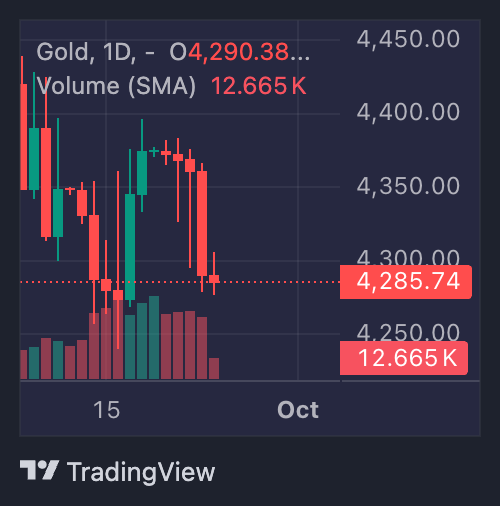
- Instrument and interval. The example shows Gold on a 1-day (1D) interval. Check both before reviewing the chart.
- Candles. Each candle summarizes price movement for one interval. The volume bars below show activity during that interval.
- Toolbar. Change the symbol or interval and add indicators or drawing tools.
Place and protect an order
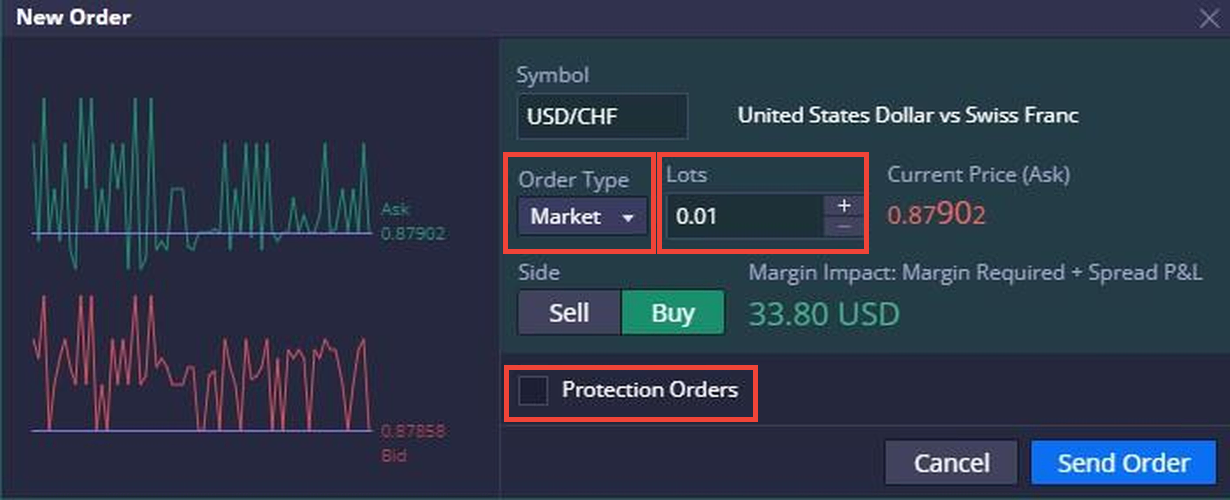
You can start an order from a Watchlist or Chart. If you are new to DXtrade, use the order ticket so you can read each field before sending it.
- Confirm the account and symbol. Check the selected Challenge account and the exact instrument. Open Instrument Info to review trading hours and contract details.
- Choose the order type. The ticket supports Market, Limit and Stop orders. Check whether the order should execute now or wait for a price condition.
- Set the trade size. Enter the lot or size amount carefully. Read the estimated Margin Impact before you submit.
- Add protection levels. Add a Stop Loss and Take Profit if appropriate for your plan. Set each by price, pips, projected amount in account currency or percentage of balance.
- Review the full ticket. Check symbol, Buy or Sell, order type, size, price and protection levels. If One-click trading is enabled, Buy or Sell may submit immediately.
- Verify the result. After sending, check Positions for an open trade or Orders for a pending order. If it was rejected, read Messages and Order History for details.
Understand Stop Loss and Take Profit
A protection level is an instruction for managing an open position, not a promise that the trade will close at an exact price. A Stop Loss and a Take Profit use different execution logic.
| Protection | What to expect |
|---|---|
| Stop Loss (SL) | When the trigger is reached, the Stop Loss is sent as a market order intended to exit at the next available price. This does not guarantee a specific price or a full closure: a gap, fast move or thin liquidity can cause slippage, and an order may be delayed, partially filled or rejected. The trigger does not cap the final loss. |
| Take Profit (TP) | Velotrade's Take Profit is a limit-style exit resting at your target. It is intended to fill at the target price or better, rather than at a worse price. A limit price does not guarantee a full fill: the order may remain open or be partially filled. Check Positions and trade history to confirm the outcome. |
| Stop Limit | Velotrade has disabled Stop Limit orders. A gap can pass a stop-limit price without filling the order, leaving the position open. A Stop Loss is separate: it triggers a market exit. Do not confuse a Stop entry order with a Stop Loss protection. |
Why a chart can show a long wick
In a fast move, multiple Stop Loss triggers can create market orders around the same price. Those orders may use up the available liquidity at that level and execute at the next available prices, producing a sharp move and a long wick. A wick shows an extreme recorded by the chart feed; it does not by itself confirm your order's fill price. Check the fill and timestamp in Order History or the Trading Journal.
Manage risk before you send the order
- Set size first. Smaller position size reduces the currency impact of each price move and any slippage.
- Leave room to the Challenge limit. A Stop Loss can execute beyond its trigger, so do not treat it as a guaranteed cap on loss or as a substitute for monitoring your drawdown.
- Verify the result. After entry, confirm the SL/TP appears on the position. After an exit, check Positions and Order History to confirm whether any quantity remains open.
Price alerts only notify you; they do not close a position. In DXtrade, create an alert from the chart or the Alerts widget, or right-click a Watchlist symbol and choose Create alert. TradingView also has chart alerts. If you manage an exit manually, you must be available to act and the eventual execution price can still differ from the alert level.
Velotrade's current Terms explain that simulated orders may experience slippage, delays, partial fills or rejection. Review the order execution section before trading: Terms and Conditions, section 7.4.
Place an order from the chart
DXtrade can open an order from a chart price. Before using this, confirm the account in the upper-right selector and check the One-click trading setting in the header.
- If needed, open chart settings, choose Trading, then enable Trading from chart.
- Hover over the chart for the quick "+" control or right-click at the target price.
- Choose a Market order to enter at the available market price, or a Limit/Stop order to wait for its price condition.
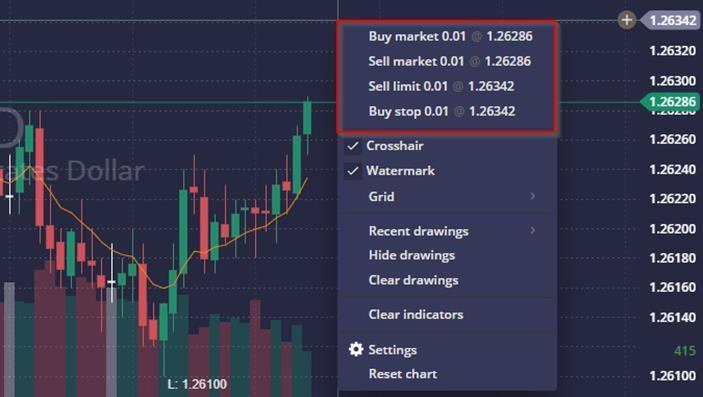
The menu may open the order ticket or submit directly when One-click trading is enabled. While learning, use the ticket and review the symbol, Buy/Sell side, order type, size, margin impact and any protection levels before sending.
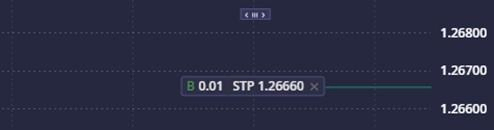
Check what happened after you send it
A filled Market order should appear as an open position in Positions. An unfilled Stop or Limit order appears in Orders. Check the message or order status if the result is not what you expected.
Close positions and pending orders
Use the Positions panel to see open trades. A new opposite trade is not the same as closing the existing position when hedging mode is enabled.
Close an existing position
- In Positions, find the position you intend to close and right-click its row.
- Choose Close Position and review the confirmation or closing ticket shown by DXtrade.
- After closing, confirm the position is no longer listed in Positions.

An equal and opposite order can offset market exposure, but with hedging mode enabled by default it opens a second position and leaves the original position listed. To close the trade, right-click that position and choose Close Position. Before a Challenge is completed or moved to the next level, confirm that Positions has no open trades and Orders has no pending orders.
Cancel pending orders separately
An open position and a pending order are different. Review the Orders panel and cancel any pending orders you no longer want. Before your Challenge can be completed or moved to the next level, close every open position and cancel all pending orders.

Review your Challenge progress
DXtrade shows trading activity and account values. Your Portal and official account messages show the Challenge information and next steps that apply to you.
| Question | Where to look | When to check |
|---|---|---|
| What is open now? | DXtrade Positions and Orders widgets. | After each order, and before leaving the platform. |
| What happened to my order? | DXtrade Order History and Messages. | When an order is delayed, rejected or hard to find. |
| How did the account change? | DXtrade Balance (completed activity) and Equity (includes open-position P&L); Trade History for closed trades. | During a session and after trades close. |
| What phase am I in? | Portal and account emails. | Before a new session and whenever you meet a milestone. |
| Have I met all pass conditions? | Your Portal, account-specific rules and Velotrade confirmation. | When your progress appears to meet the target. Wait for confirmation before acting on a new phase. |
Find your account progress
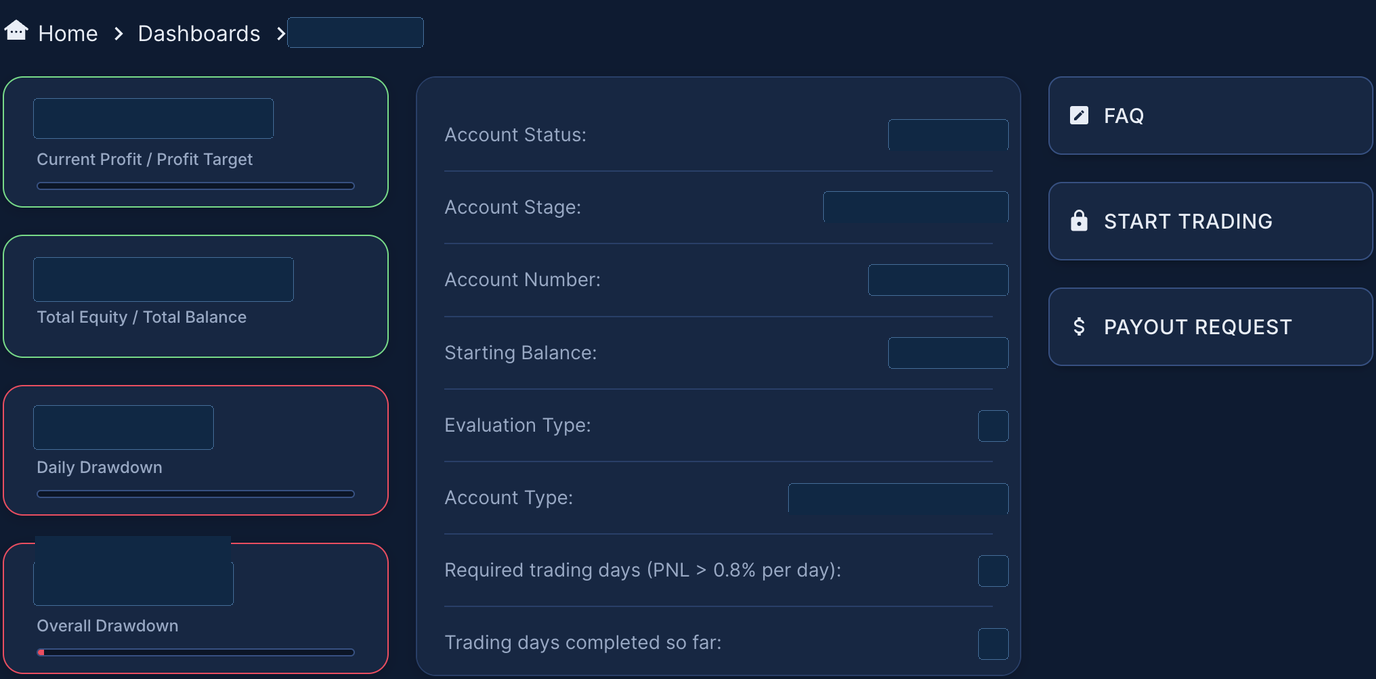
From My Accounts, select Dashboard on the account card. Review the current status, stage, profit and drawdown metrics near the top. Scroll down for performance charts, trading metrics and the account's trading history. Use the values shown on your account when checking your progress.
- If your Challenge has more than one phase, complete each phase shown in your plan. A target in one phase does not automatically complete the next one.
- If your Portal shows a status or value you do not understand, generate a DXtrade statement, then contact support with the account ID, date and time with timezone, and any order ID.
- A Challenge is an evaluation. Payout requests apply to eligible funded accounts, after a funded account has been offered and accepted. Check the current Payouts page for current requirements.
Before leaving the platform, check open positions, pending orders, equity and Challenge status. Cancel pending orders you no longer intend to use, then sign out on shared devices.
Review your Trading Journal
The Trading Journal gives you a trade-by-trade record for a selected date range. It can show the symbol, time, order ID, buy/sell side, opening or closing effect, volume, price and P&L in account currency or pips. Add tags or notes if you want to organize your reviews.
- Open Trading Journal. Choose its tab in your DXtrade workspace.
- Set the date range. Use the date controls to narrow the records you want to review.
- Review or annotate. Expand grouped entries and add tags or notes. Use Order History for the full order lifecycle.

Generate an account statement
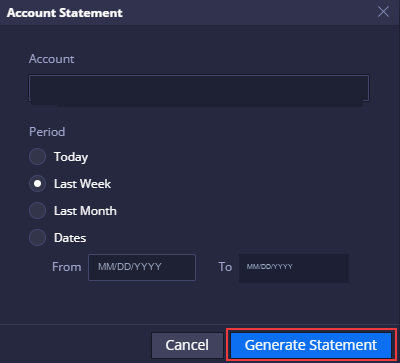
- Open the Settings menu in DXtrade and choose Account Statement.
- Select the correct trading account and choose Today, Last Week, Last Month or a custom date range.
- Select Generate Statement, then save the file privately and check the account and date range before sharing it with support.
A statement can help support investigate a specific period. Include the relevant date and time (with timezone) and any order ID when you contact support; never send your password.
DXtrade API and automated trading
The DXtrade API is for traders who want their own software to read account data, stream updates or automate eligible activity. It is optional; you can use DXtrade normally without programming or API access.
Velotrade's technical guide explains how to authenticate, discover accounts and instruments, start with read-only data, stream updates and place orders safely.
Your DXtrade username and password are also used for API authentication. Keep them private; do not paste them into source code, public repositories or AI chats. The same current Challenge terms and trading rules apply to activity sent through the API.
Technical success does not confirm that an order has executed or that an action complies with your Challenge rules. Confirm results in DXtrade and check the current Velotrade Rules page before automating orders.
Get help when something looks wrong
| What happened | What to do first |
|---|---|
| I cannot open DXtrade | Sign in to the Velotrade Portal, open My Accounts, then select Start Trading on the right account to view the DXtrade username and password. Select DXTRADE WEB to open DXtrade and sign in with those credentials. They are separate from your Portal email and password. If you lose the DXtrade password, contact support. |
| I cannot see my Challenge | Open Portal > My Accounts and check the account number on the Challenge card. If the Challenge is missing, contact Velotrade support. |
| My order was rejected | Check the symbol information, market hours, size and Margin Impact. Review Messages and Order History for the platform response. |
| My Challenge limit or status is unclear | Read the account-specific terms and live Rules page. Send support your account ID, timestamp with timezone and a screenshot of the status or value. |
| I want to use DXtrade on my phone | Use a mobile app only if Velotrade has confirmed it for your account. If you are unsure, open DXtrade using DXTRADE WEB from the Portal. |
Official Velotrade resources: Rules · FAQs · Instruments · Contact support. For a broader tour of the platform itself, read how to use DXtrade for prop trading. To read the charts you place orders from, see the chart patterns cheat sheet, how to read stock charts and stop loss.
Your first session checklist
- I opened the correct Portal and DXtrade links.
- I matched the DXtrade account number to the correct Challenge in the Portal.
- I read the current rules and noted my plan-specific limits.
- I selected the right trading account in DXtrade.
- I checked the symbol, size, order type and protection before submitting.
Keep your access secure
Keep both passwords private and store them in a password manager. Your Portal password is managed separately through Portal sign-in and its password reset route. If you need to reset your Velotrade-generated DXtrade password, contact Velotrade support.
If you cannot tell which credentials belong where, use velotrade.com/contact if you cannot retrieve your DXtrade details or the account numbers do not match. Include your account email and Challenge account number; never include a password.
Frequently Asked Questions
About the author

Cameron Malcolm
AI & Technology Engineer
Hong Kong based AI and technology engineer at Velotrade. Author of the Velotrade DXtrade API Knowledge Base and the Challenge account onboarding guide.
Velotrade was founded in Hong Kong in 2016 by a team from JP Morgan, Dresdner Kleinwort and Bank of America, has paid out over $2.5 billion to its trade-finance clients, and has been featured in Bloomberg, the Financial Times, the Wall Street Journal and on Nasdaq. Its prop trading evaluations are simulated and educational.
View author page